|
|
|
1. E-Mail + WinSCP Access
1.1 IMAP/SSL + SMTP/TLS setup + WWW intro. + WinSCP (FTP) 1.2 Outlook Express, Thunderbird, Firefox, WinSCP NB, user verification messages will appear unless you install the servers SSL certificates found on the main page2. Outlook Express NB, login via SMTP will not be encrypted via TLS. Outlook will continously warn on first connect about the CommonName * not matching either mupugly.no-ip.org or hosted.domain.name server name.
in the Menu, click on Tools -> Accounts...
3. Thunderbird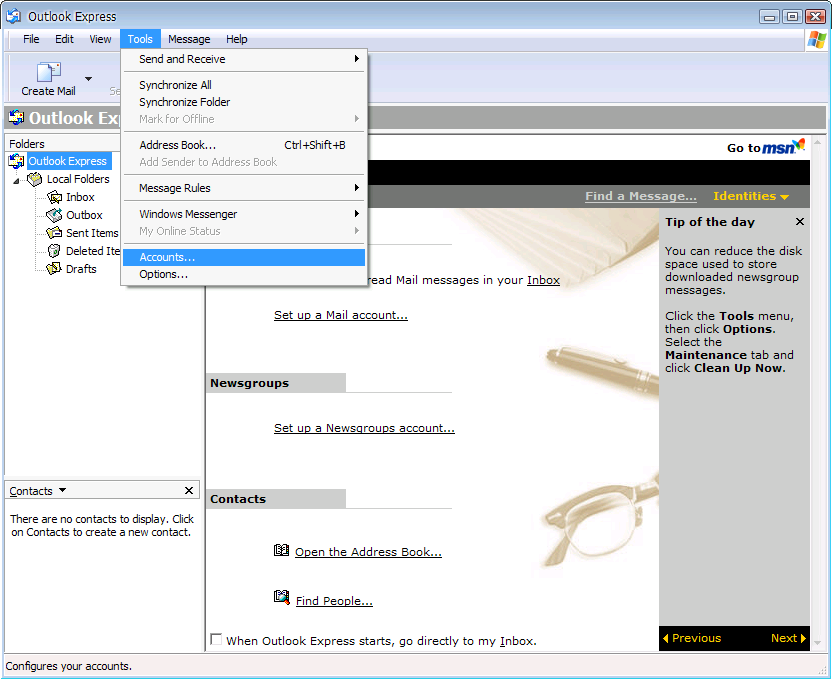
in the Accounts Window, click on Add -> Mail... 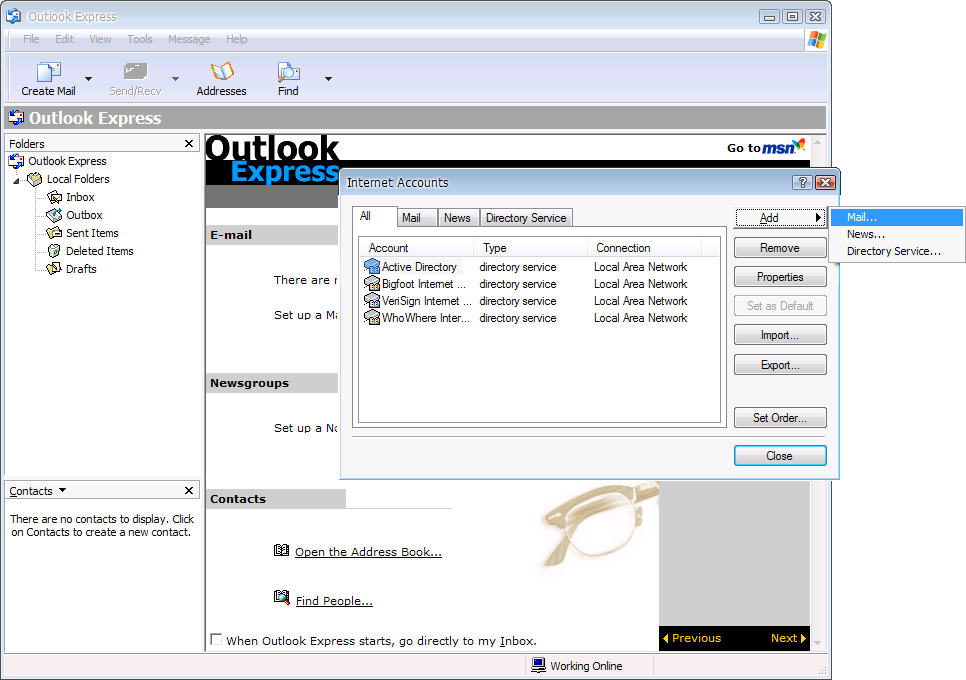
type in your display name, click on Next 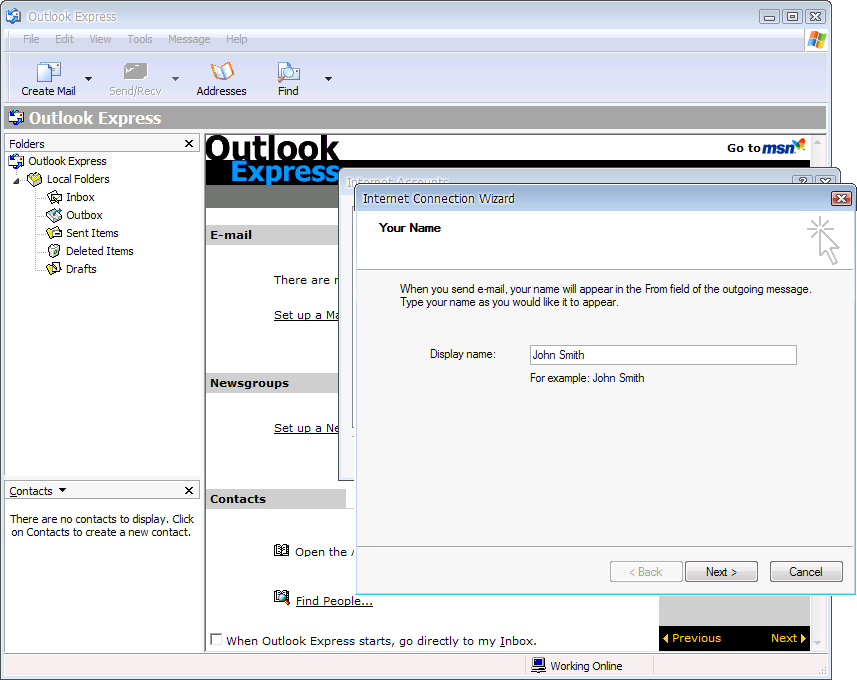
type in your sending email address, click on Next 
setup your server preferences as show below, click Next 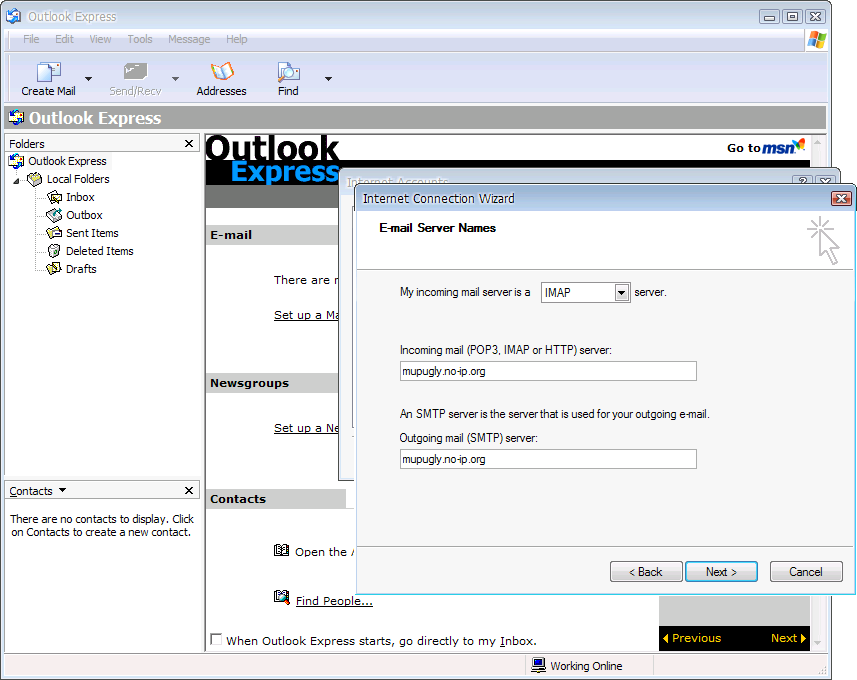
type in your actual username not an email alias, untick Remember password, click Next 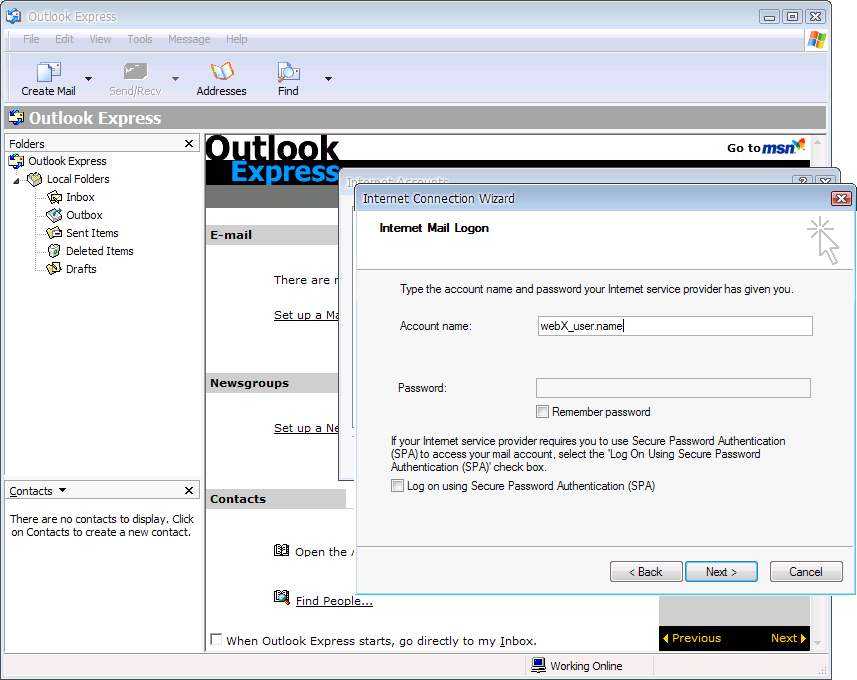
click on the Mail tab in the Accounts Window, select account mupugly.no-ip.org, click on Properties 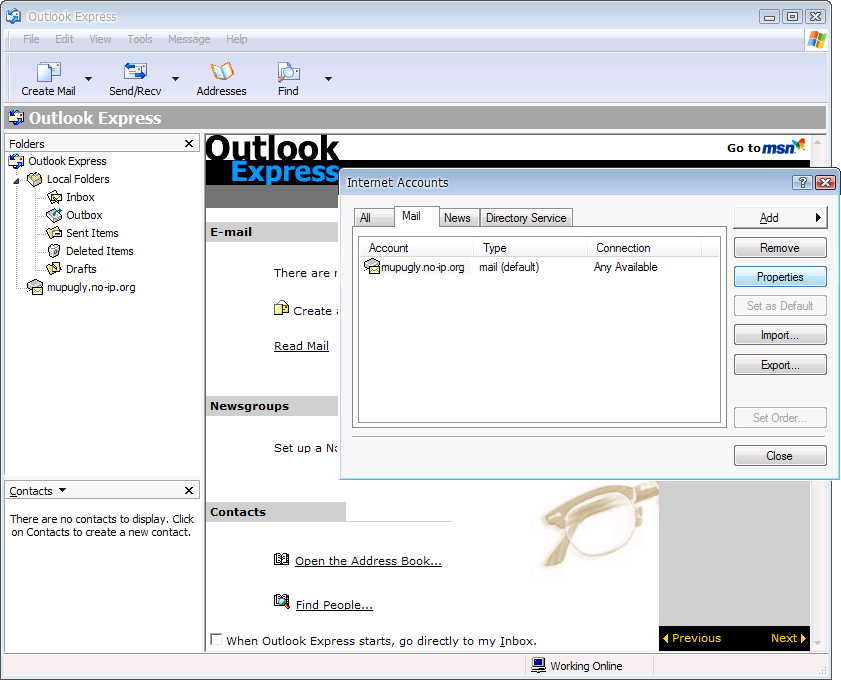
click on the Advanced tab, enable SSL for IMAP (not SMTP) as shown below, click on OK 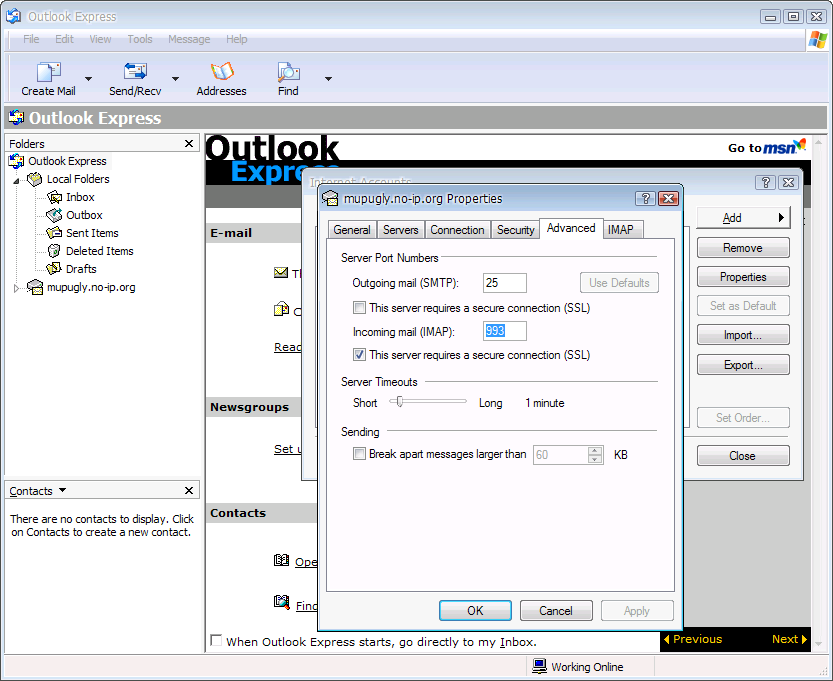
click on the Servers tab, select My server requires authentication under Outgoing Mail Server, click on OK 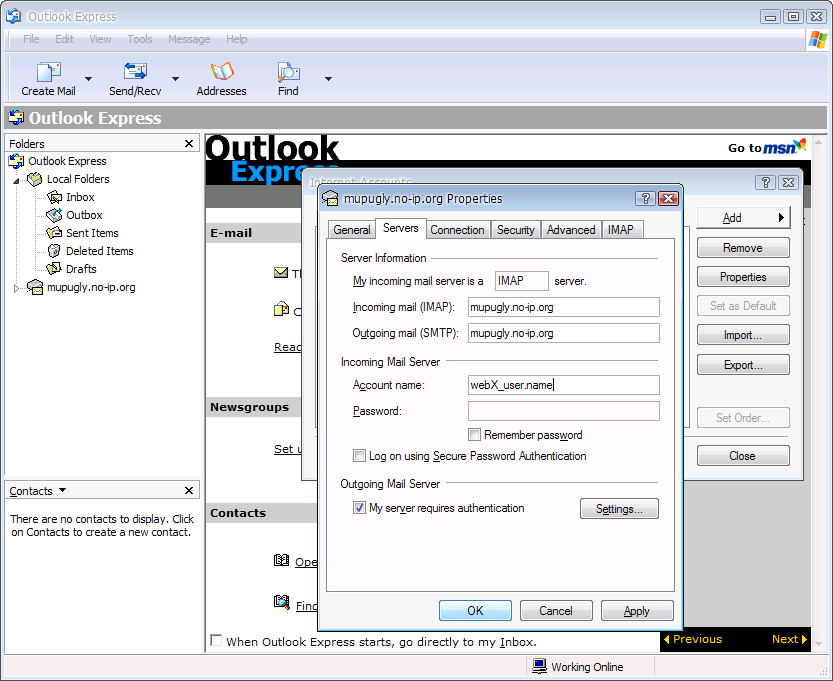
click on Close 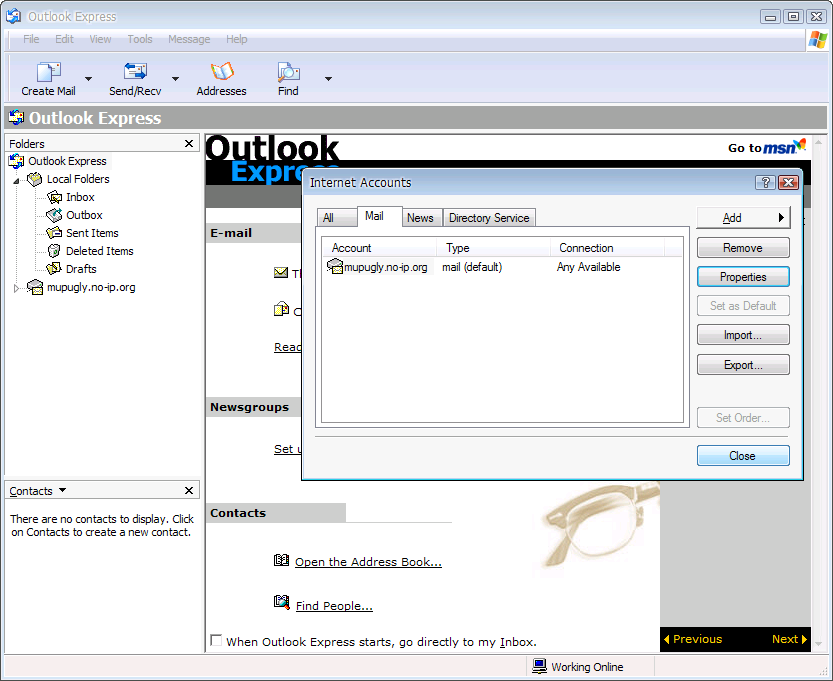
on first connect to IMAP/SSL click on Yes 
in the Warning Window click on Yes to accept the shared SSL certificate 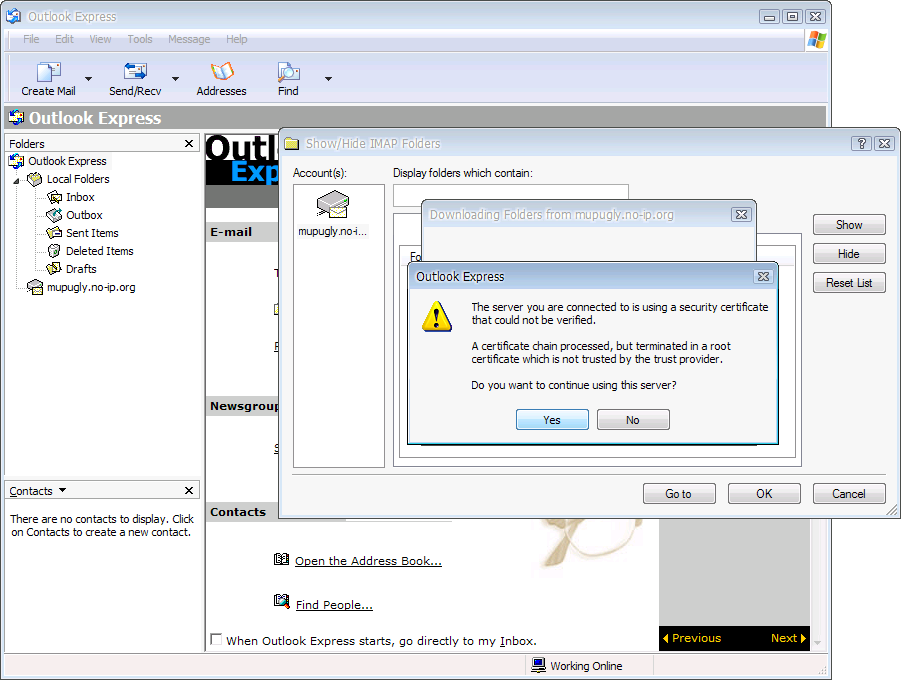
to finish the setup click on OK 
in the Menu, click on Tools -> Account Settings..
4. Firefox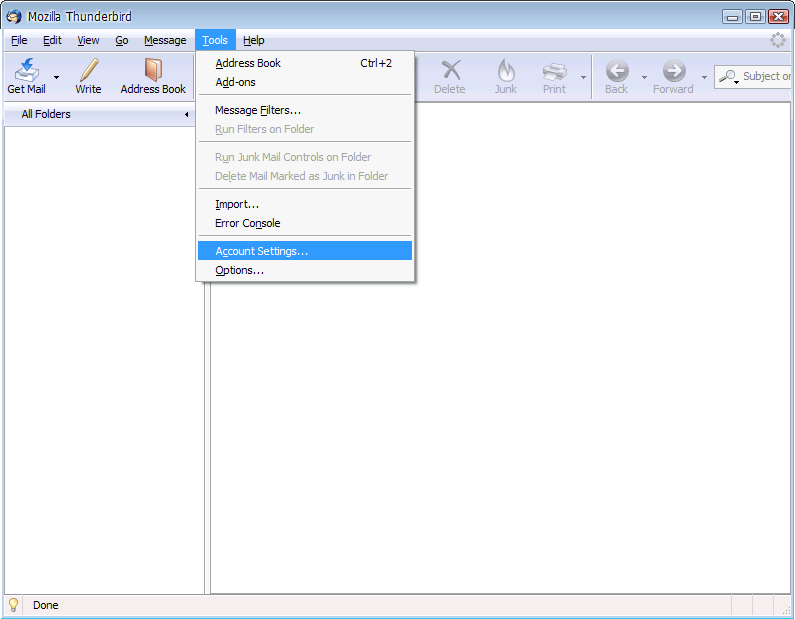
in the Account Settings Window, click on Add Account... 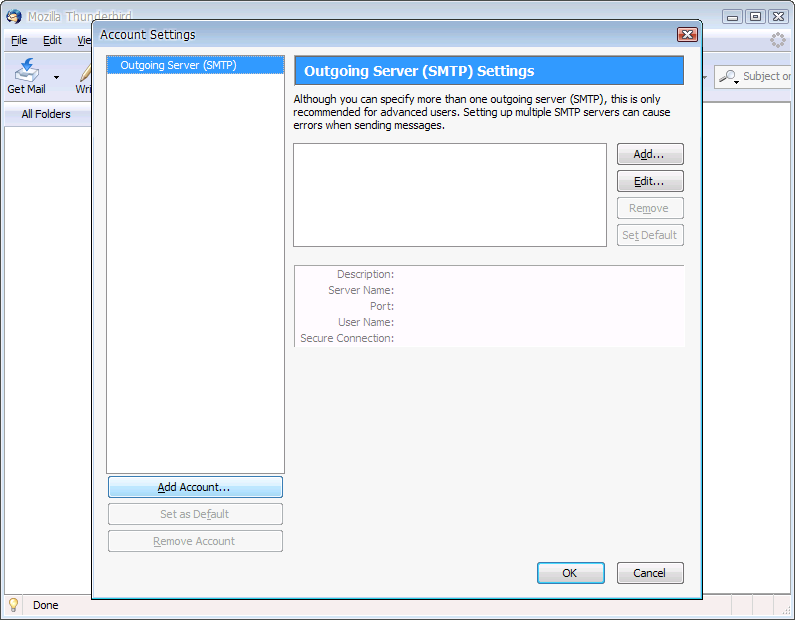
select Email account, click on Next 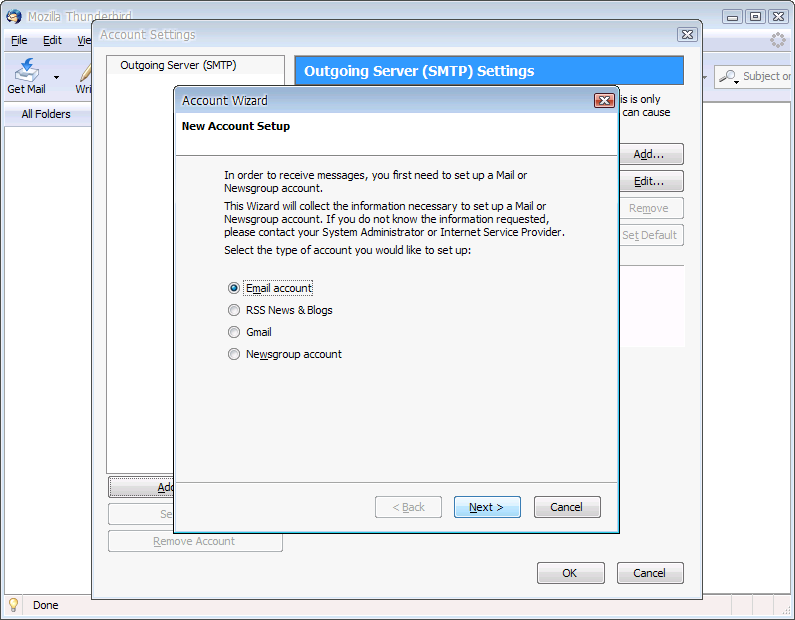
type in your display name and sending email address, click on Next 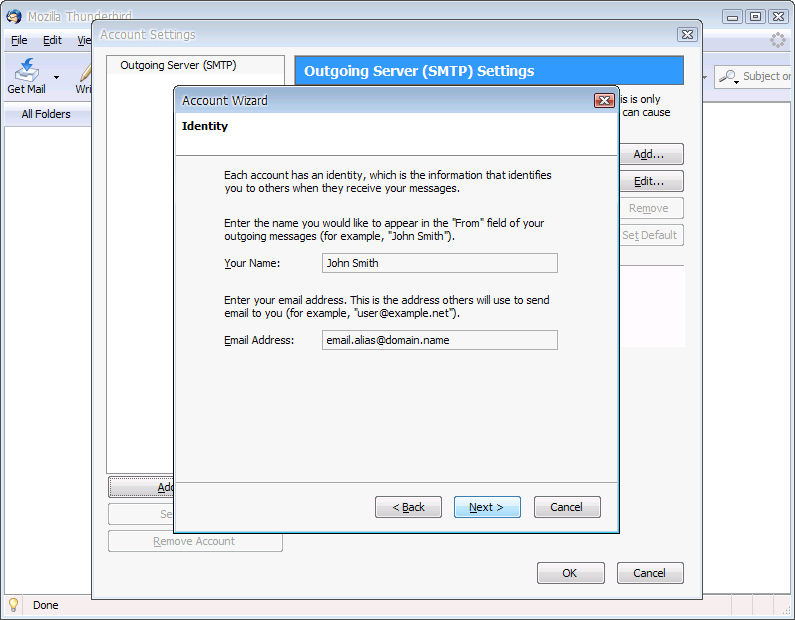
select IMAP, type in the mupugly.no-ip.org settings as shown below, click on Next 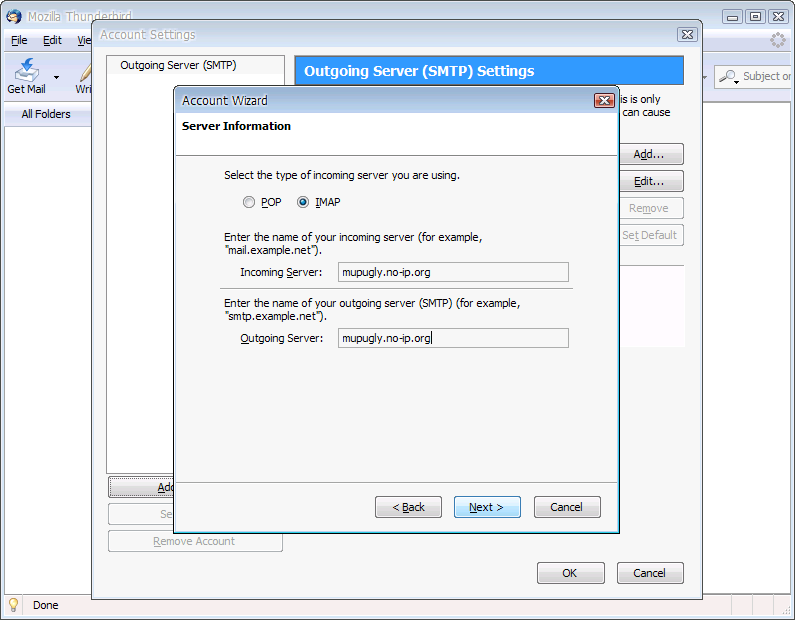
type in your username not an email alias, click on Next 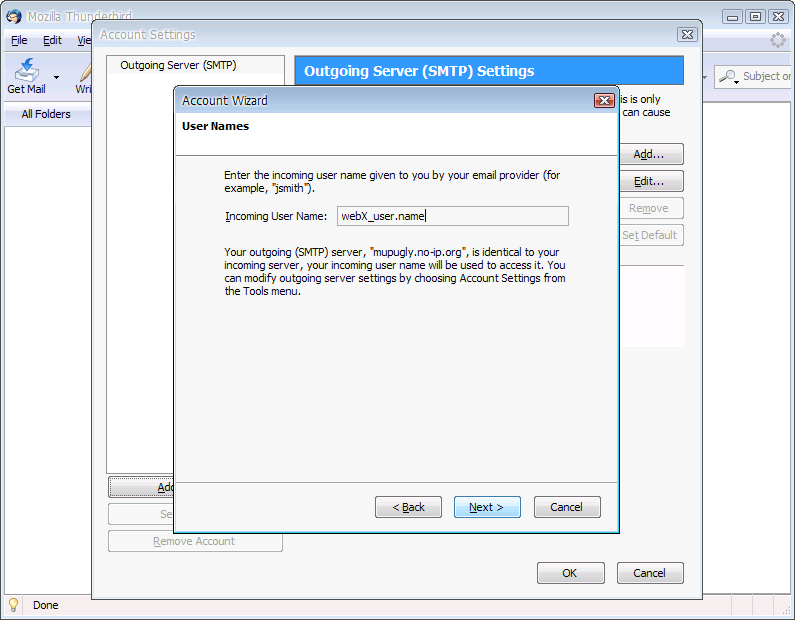
type in a display name for the account, click on Next 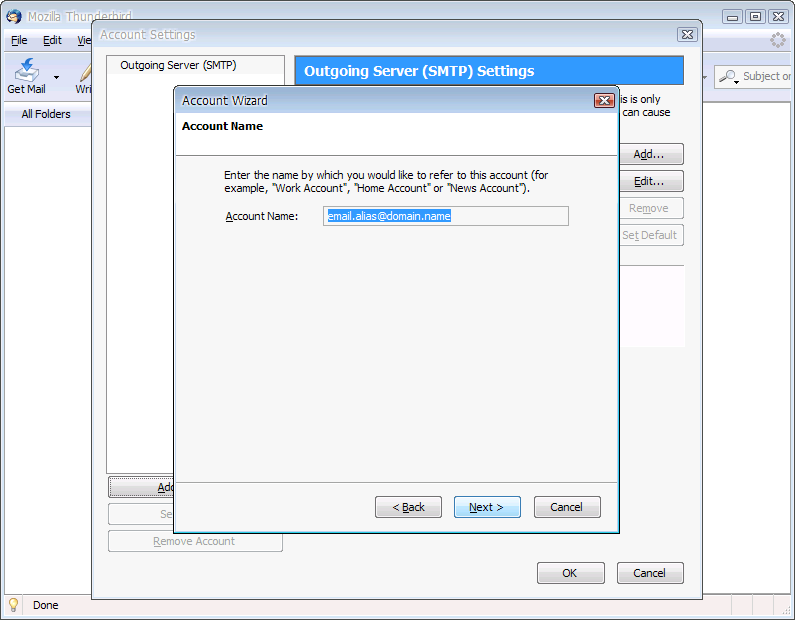
select Server Settings under the IMAP account display name and enter SSL settings as shown below, click on OK 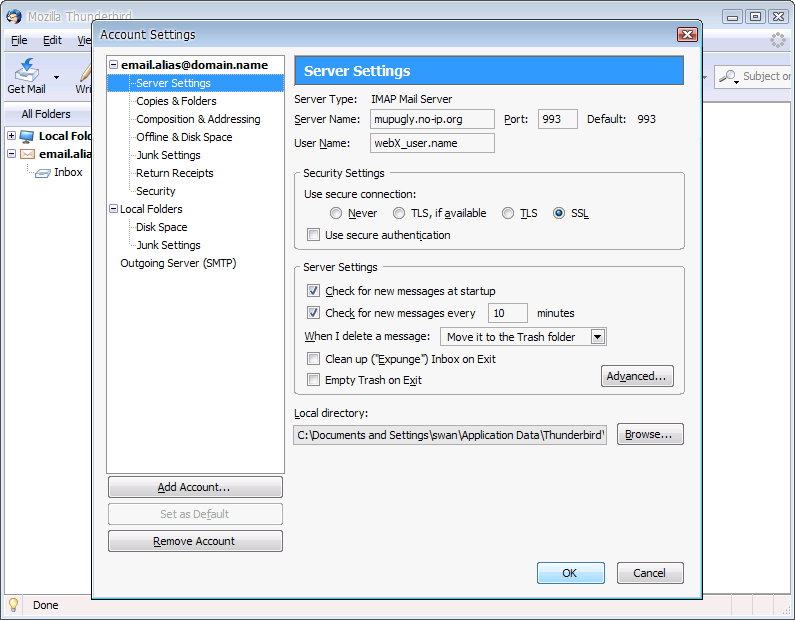
select Outgoing Server (SMTP), click on Edit... 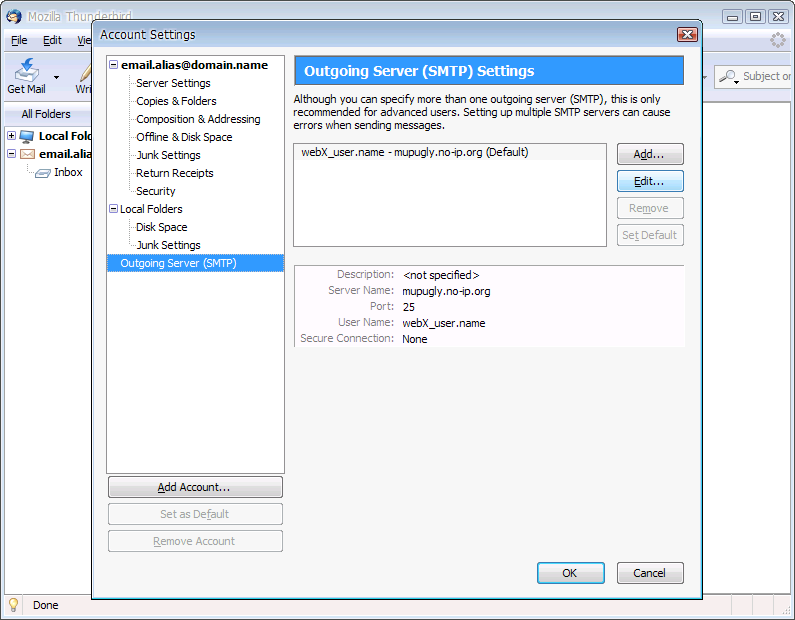
select TLS and confirm SSL settings as shown below, click on OK 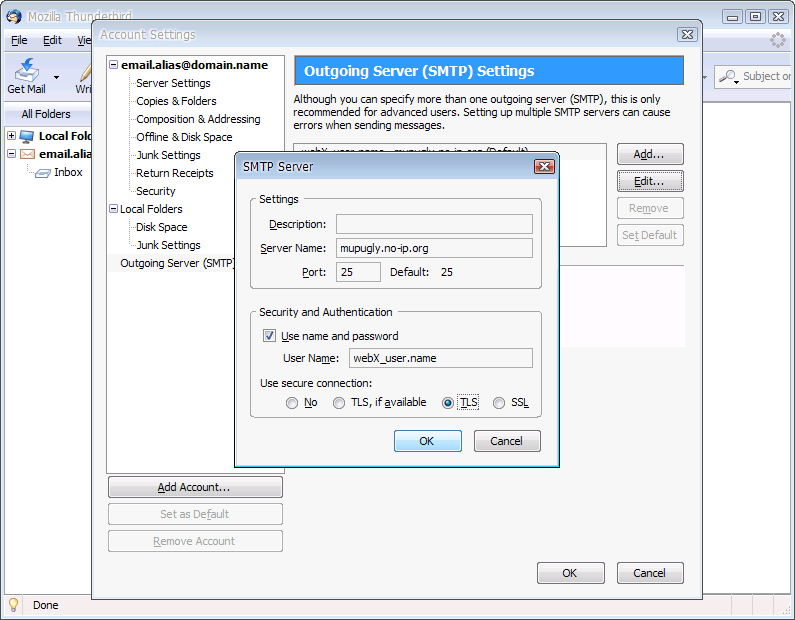
(skippable) to verify the current certificate on first connect click on Examine Certificate... 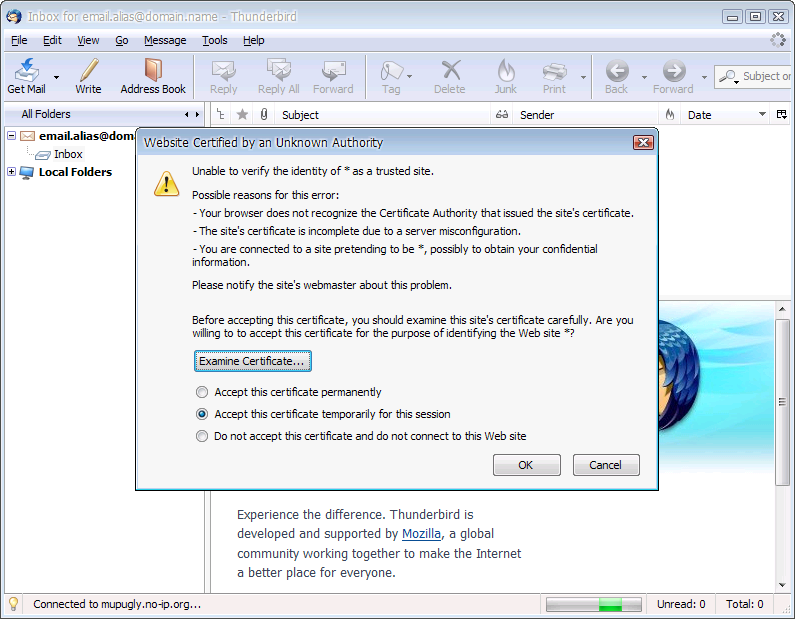
(skippable) confirm current certificate with image snapshot below, click Close 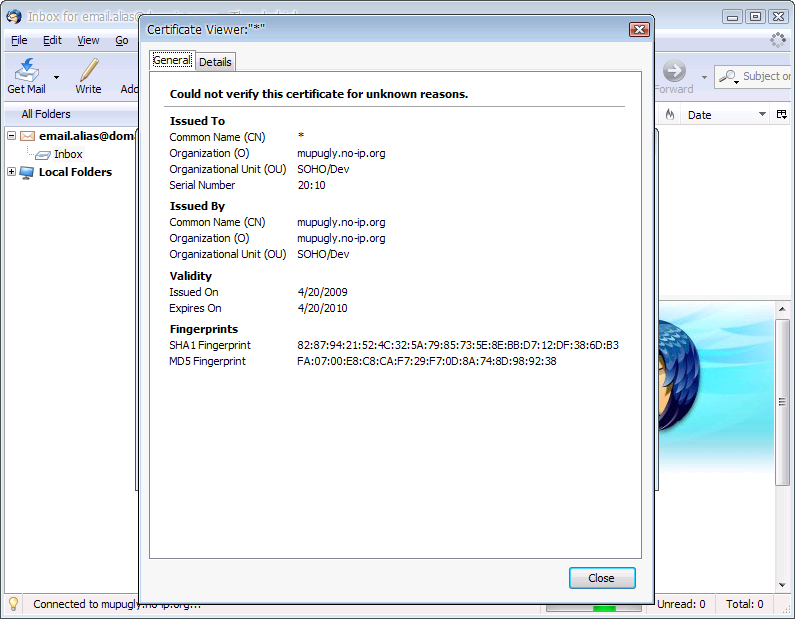
select Accept this certificate permanently to accept the shared SSL certificate, click on OK 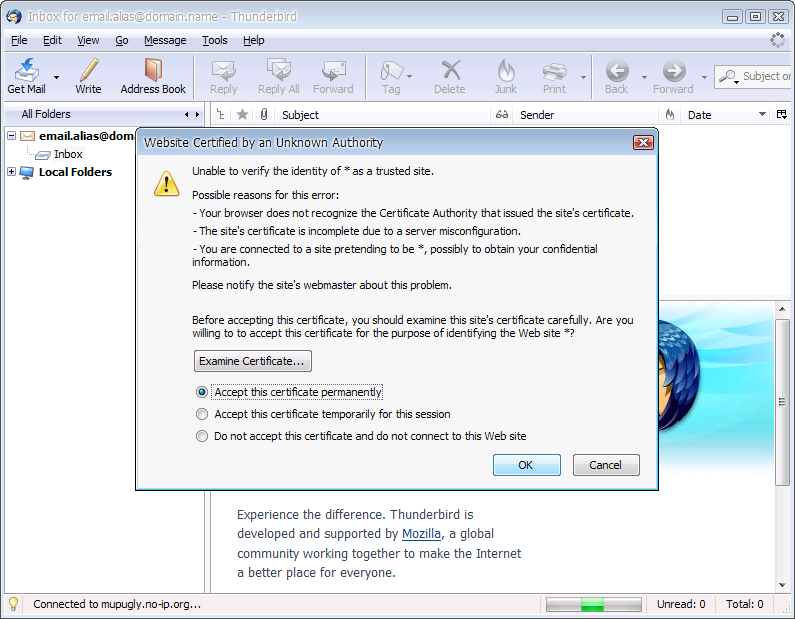
on first connect click on Or you can add an exception...
5. WinSCP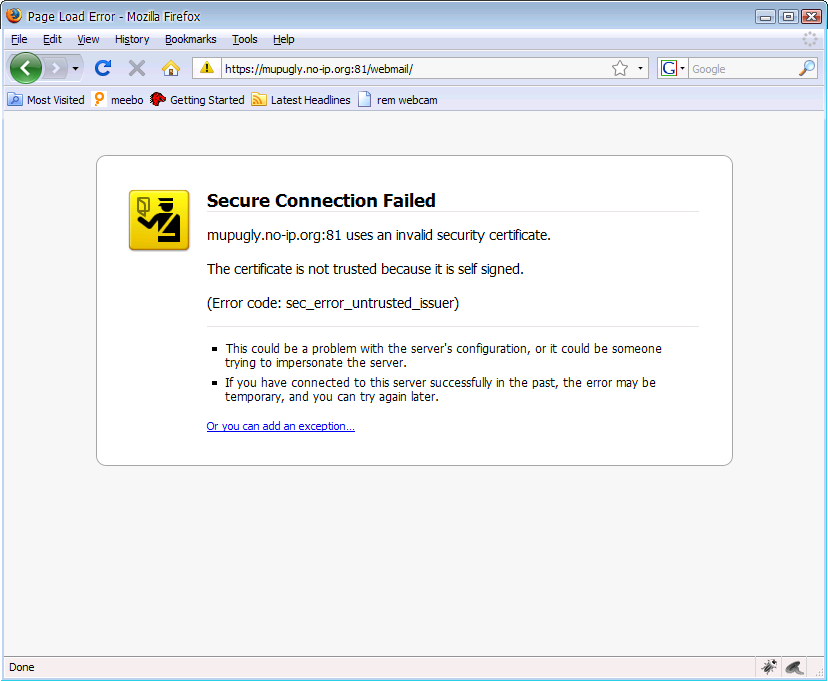
click on Add Exception... 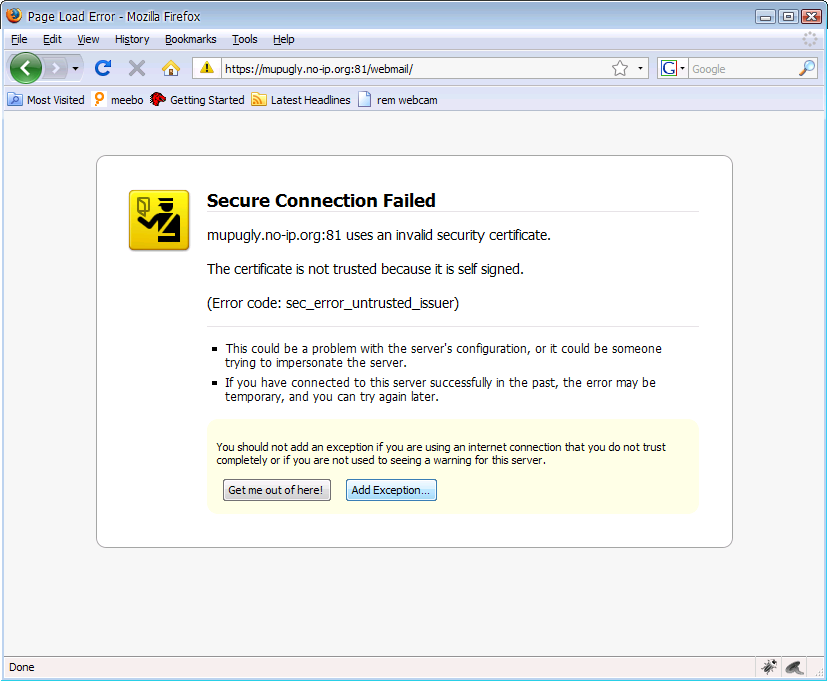
click on Get Certificate 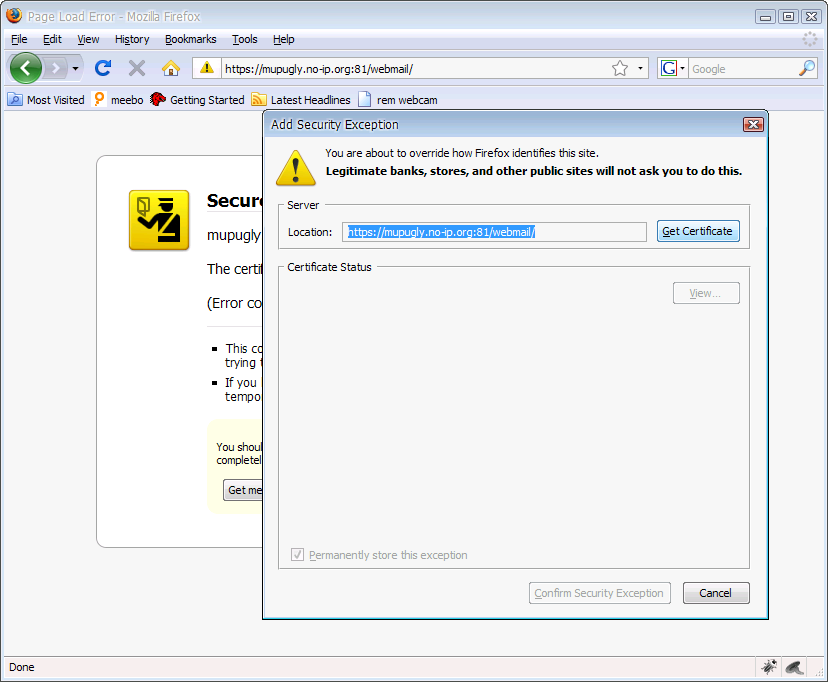
(skippable) to confirm current certificate click on View 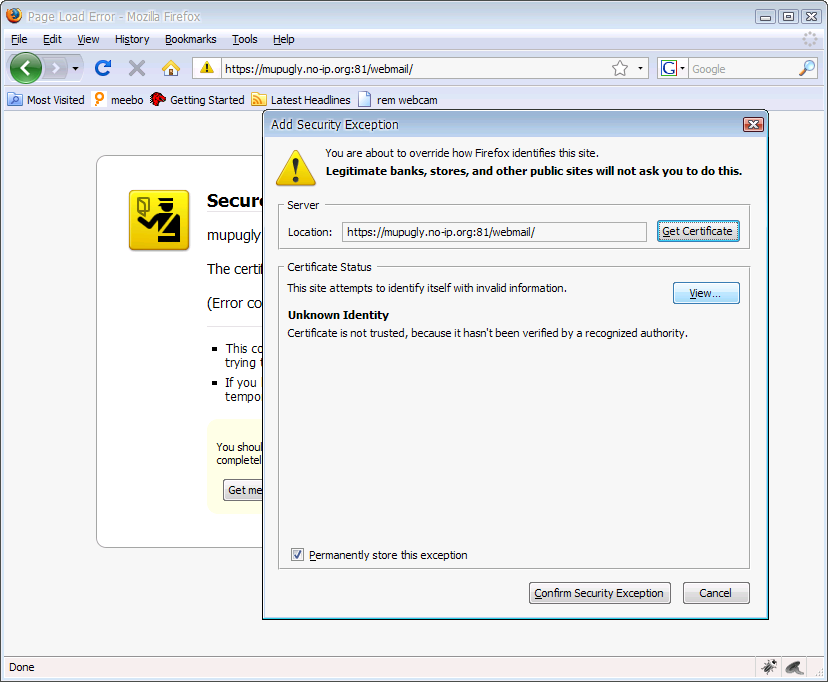
(skippable) confirm current certificate with image snapshot below, click Close 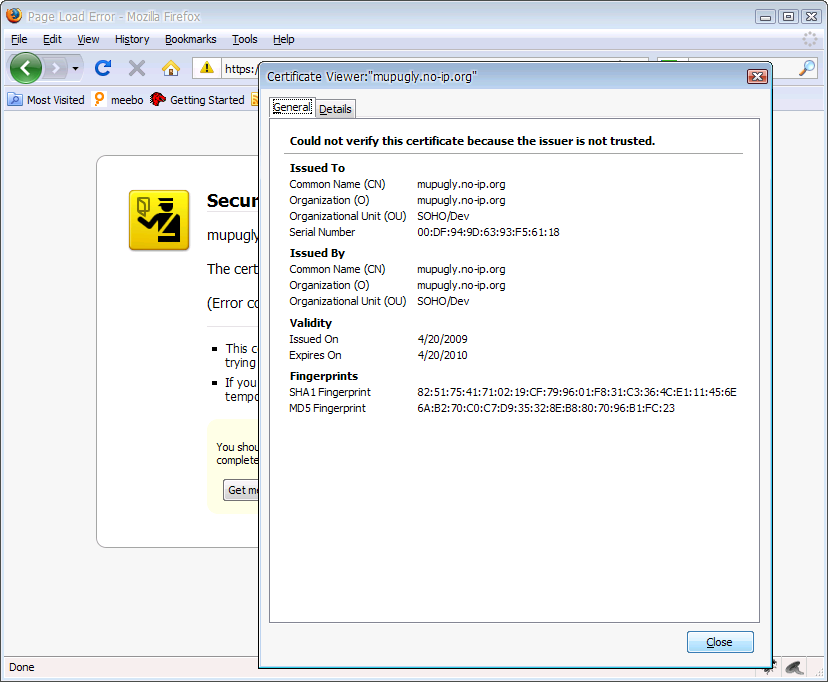
confirm Security Settings are as shown below, click on Confirm Security Exception to accept the mupugly.no-ip.org SSL certificate 
type in either your proper username or an email alias @ hosted.domain.name, your password and click on Login 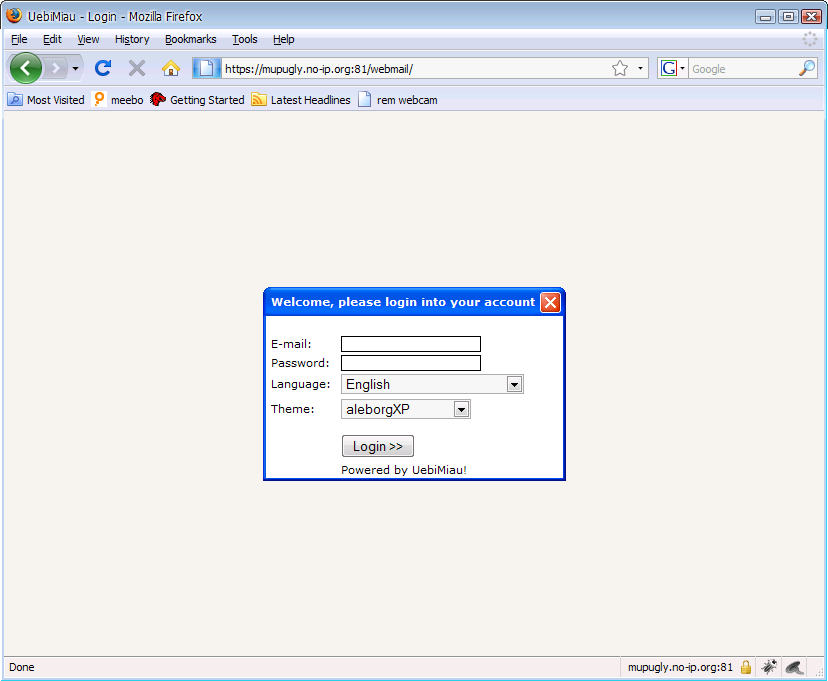
to enter with an email alias check with sample shown below before clicking on Login 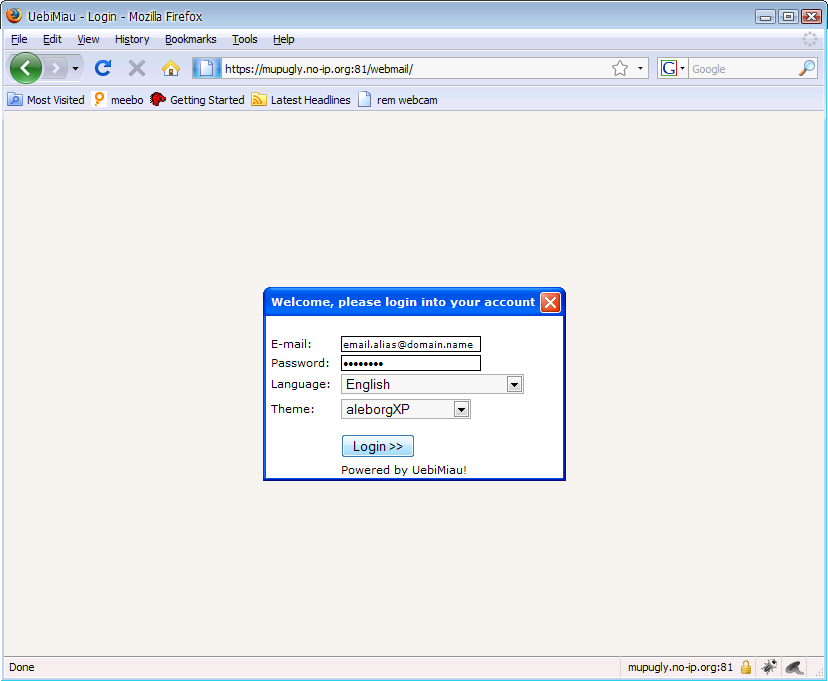
to enter with a proper username check with sample shown below before clicking on Login 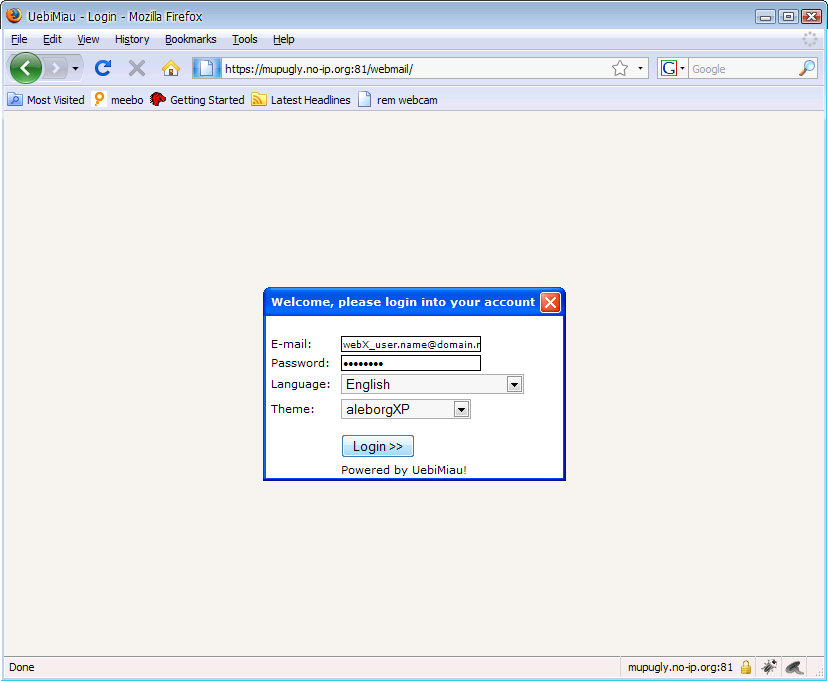
NB, your domain account settings will need to be set with Mailuser login along with your username, ask your hosted.domain.name administrator before attempting to connect to this service as repeated failures might result in an automatic IP block type in the mupugly.no-ip.org SSL/SCP/SSH settins as shown below with your proper username, click on Save... 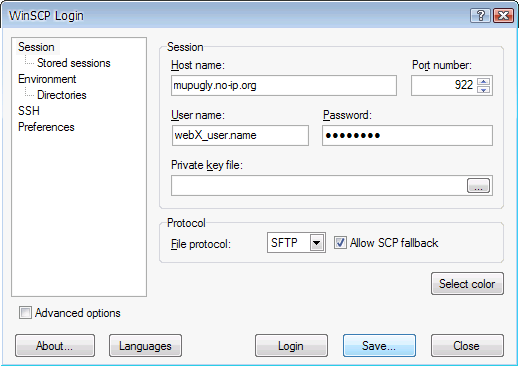
type in a display name for the session, click on OK 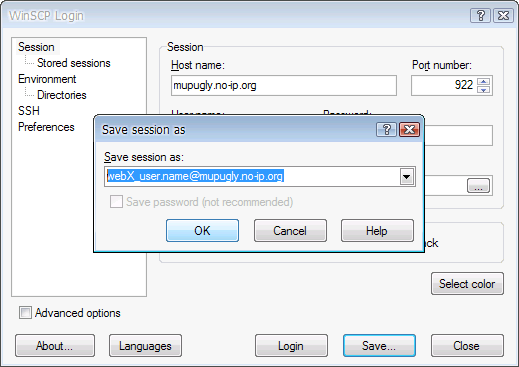
to begin a session click on Login 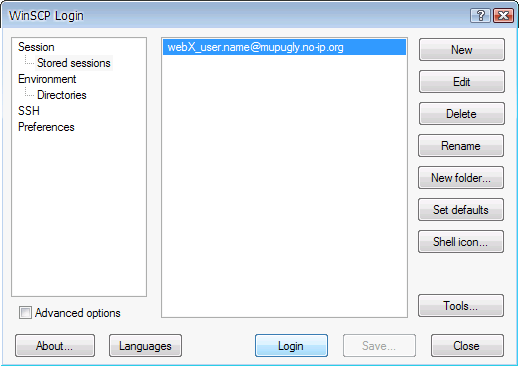
to SSL confirm security warning on first connect, click on Yes after confirming with current image snapshot shown below 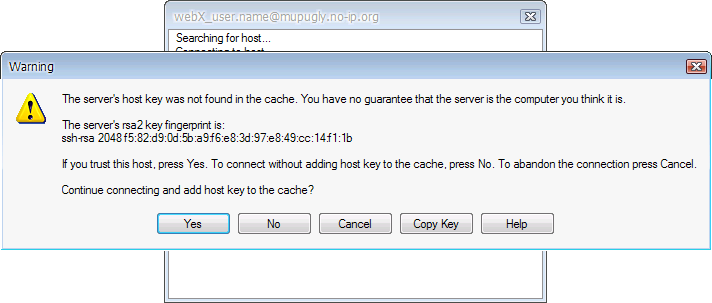
|